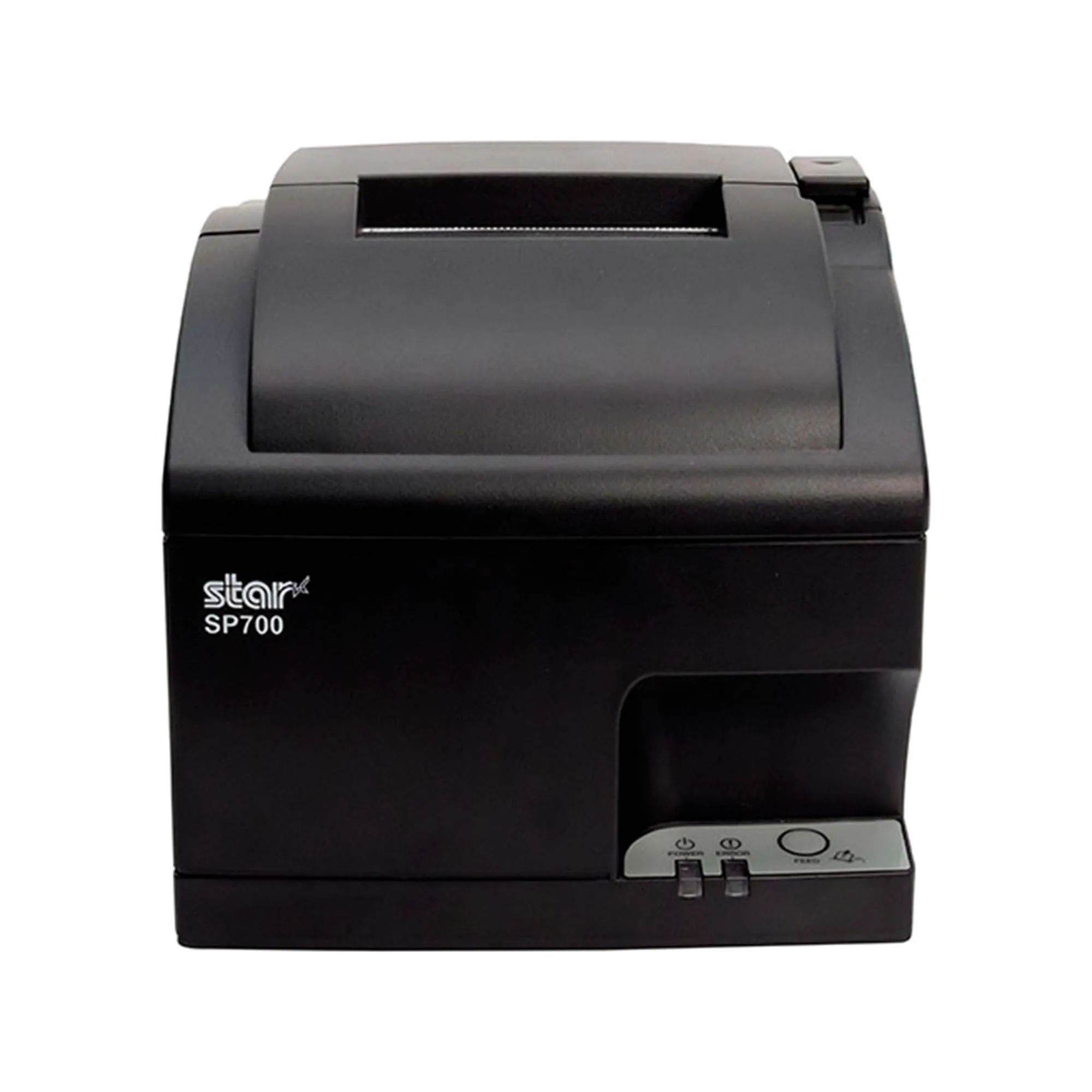
 Finding the printer’s IP address
To connect your printer and POS, you will need the IP address of the printer on your network. To find the IP address, print the self-test page:
- Turn the printer off.
- Hold down the Feed button.
- While continuing to hold Feed, turn the power on.
- Wait for the device to start printing, then release Feed.
- Once the first page has finished printing, press Feed once more to finish.
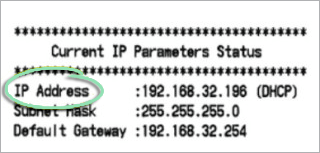
The bottom of the self-test page will show Current IP Parameters. Hang on to this page and note the IP Address, which will need to be given to our support team.
Was this article helpful?
That’s Great!
Thank you for your feedback
Sorry! We couldn't be helpful
Thank you for your feedback
Feedback sent
We appreciate your effort and will try to fix the article