Here is how to print pricing labels for your inventory in ECS:
1. Click on Inventory, then Labels.
2. From here, you can either enter the amount of labels you need manually by clicking in the yellow boxes by the item or you can choose to print enough for your on hand inventory by clicking the dropdown menu under "Labels to Print". You can also choose the number of labels to print based on vendor, category, or sub-category.
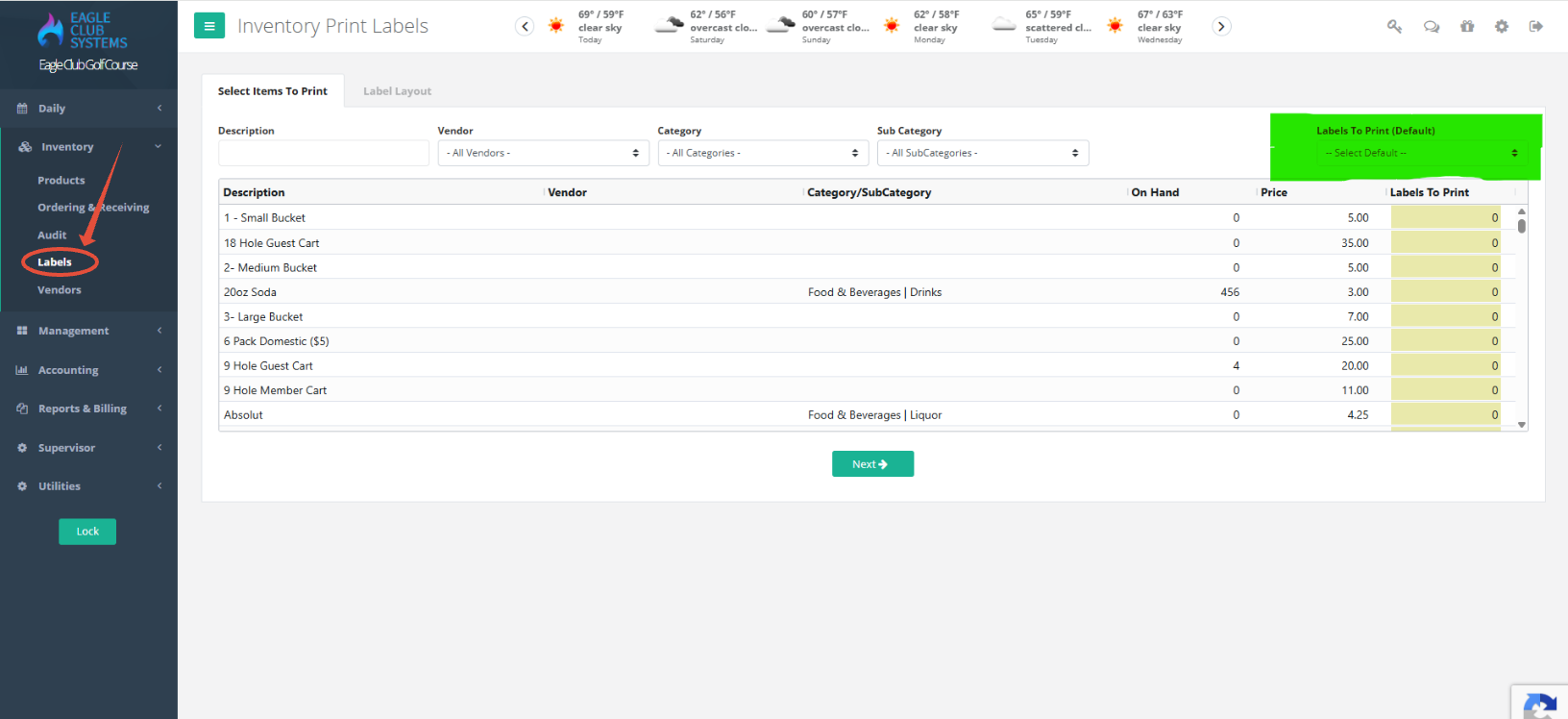
3. Once you have the correct number of labels chosen, click Next at the bottom of the screen.
4. Make sure the correct label type is selected. We currently support either Avery 5160 or Avery 5267.
5. Select the first available label on your label sheet. So, if you only have half of a sheet, just select the first blank label you have and your labels will start printing from that spot.
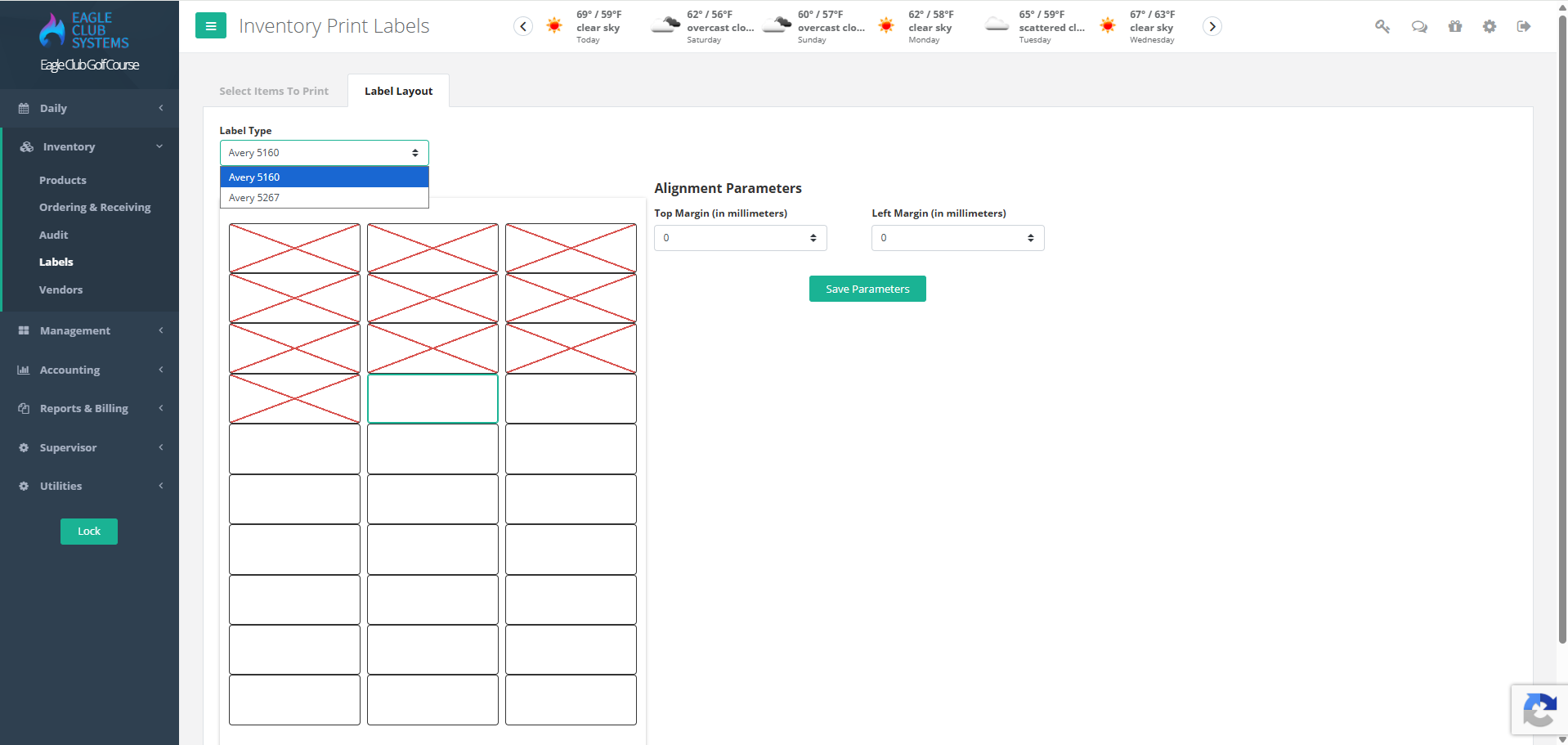
6. Once you have selected the label type and where your labels should start, click Print Labels at the bottom of the screen. This should generate a popup window of a preview of the labels.
7. If your labels are off center, exit out of the preview and use the Alignment Parameters to adjust the margins to center your labels. In the Top Margin, the negative numbers move the text up and the positive numbers move the text down. In the Left Margin, the negative numbers move the text left and the positive numbers move the text right.
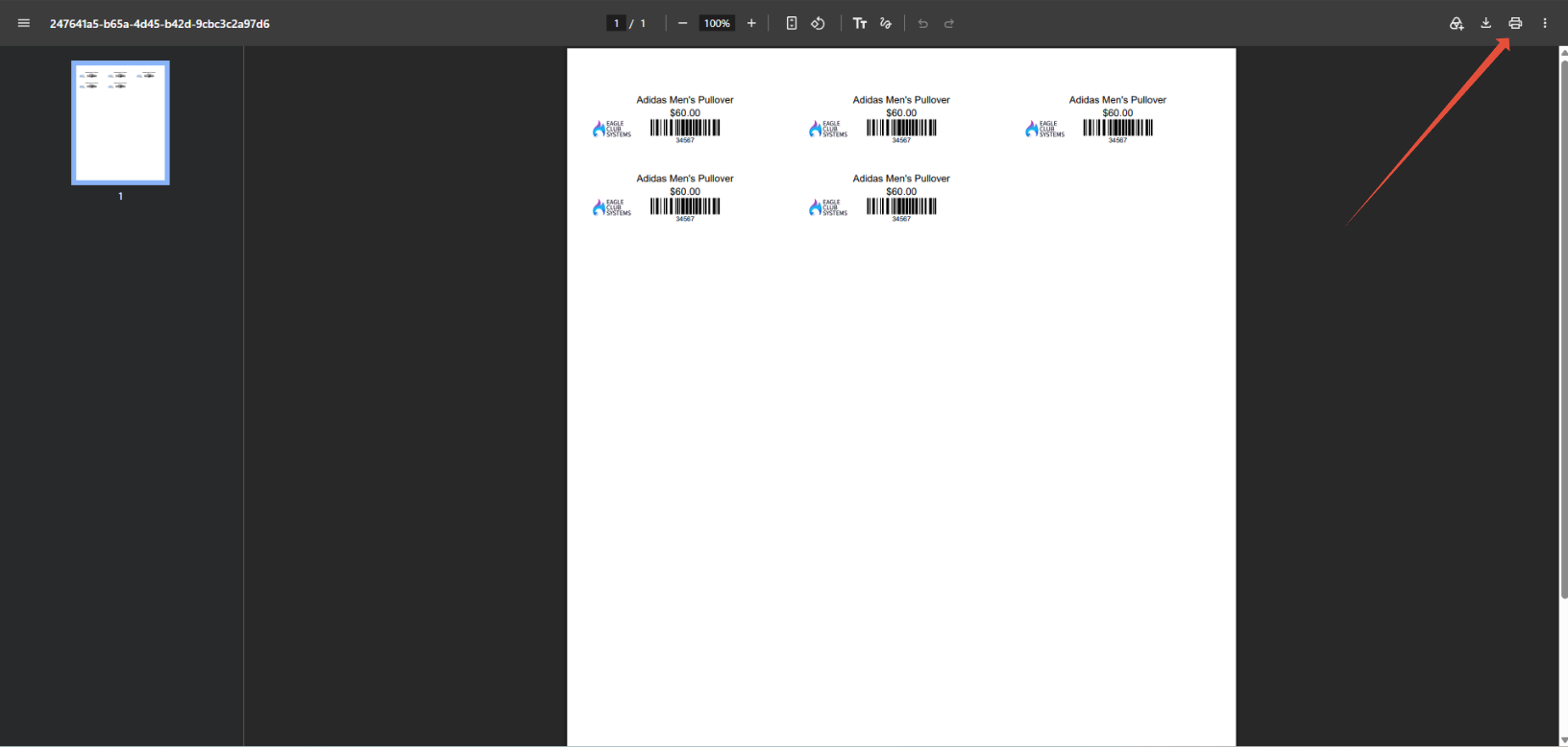
8. Once you are happy with the alignment, click the printer button in the top right of the screen. Make sure the correct printer is selected, and print your labels.
Was this article helpful?
That’s Great!
Thank you for your feedback
Sorry! We couldn't be helpful
Thank you for your feedback
Feedback sent
We appreciate your effort and will try to fix the article