EAGLE CLUB SYSTEMS | KNOWLEDGE CENTER
How to Add an ACH Bank Account and Make an Online Payment
Save a bank account or credit card through your golf course's online portal, then use it to pay your account balance.
Part 1: Add Your ACH Bank Account
Step 1. Sign In and Open Your Account
Visit your golf course's online portal (booking engine) and sign in. Select Account in the upper right corner.
Step 2. Go to Manage Payment Methods
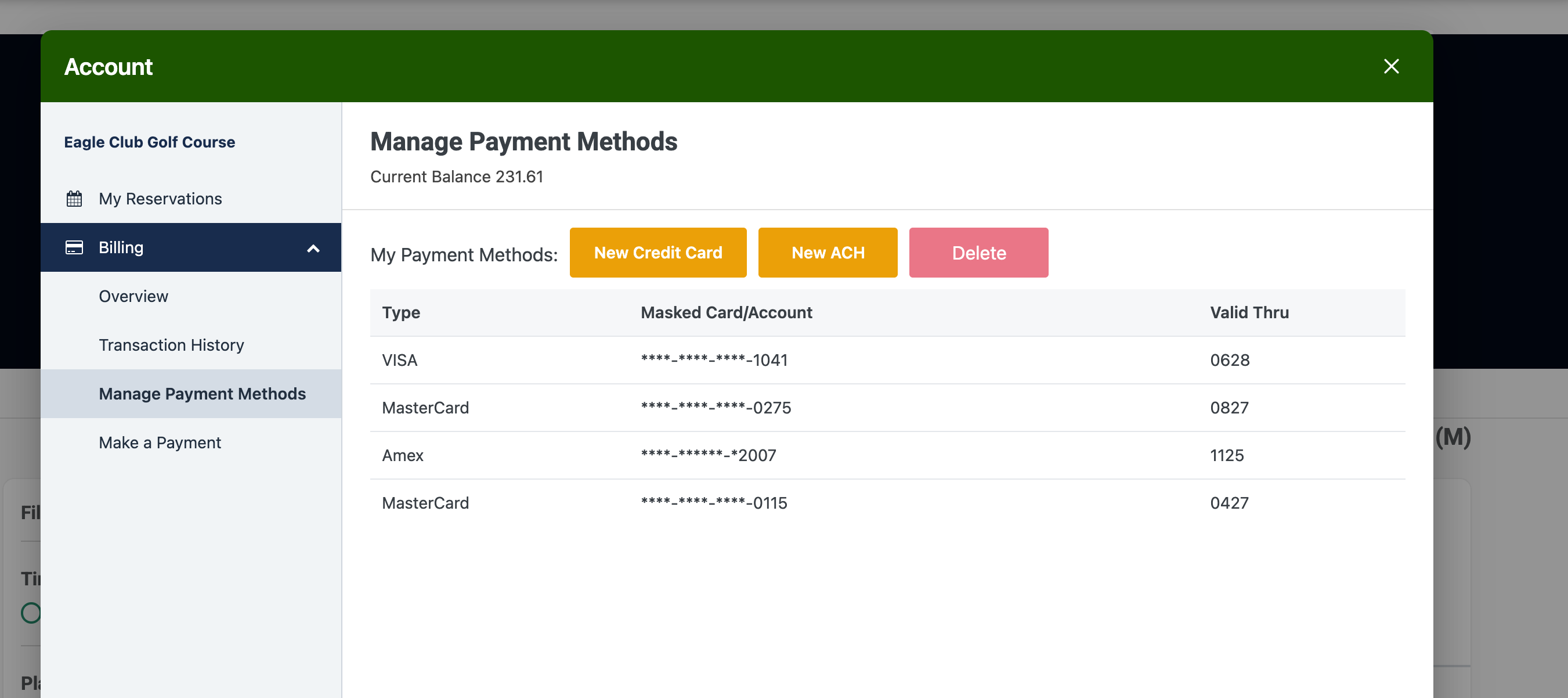
In the Account window, select Billing in the left menu, then select Manage Payment Methods.
Step 3. Select New ACH
Select the yellow New ACH button. A window titled Pay By ACH will open so you can enter your banking information.
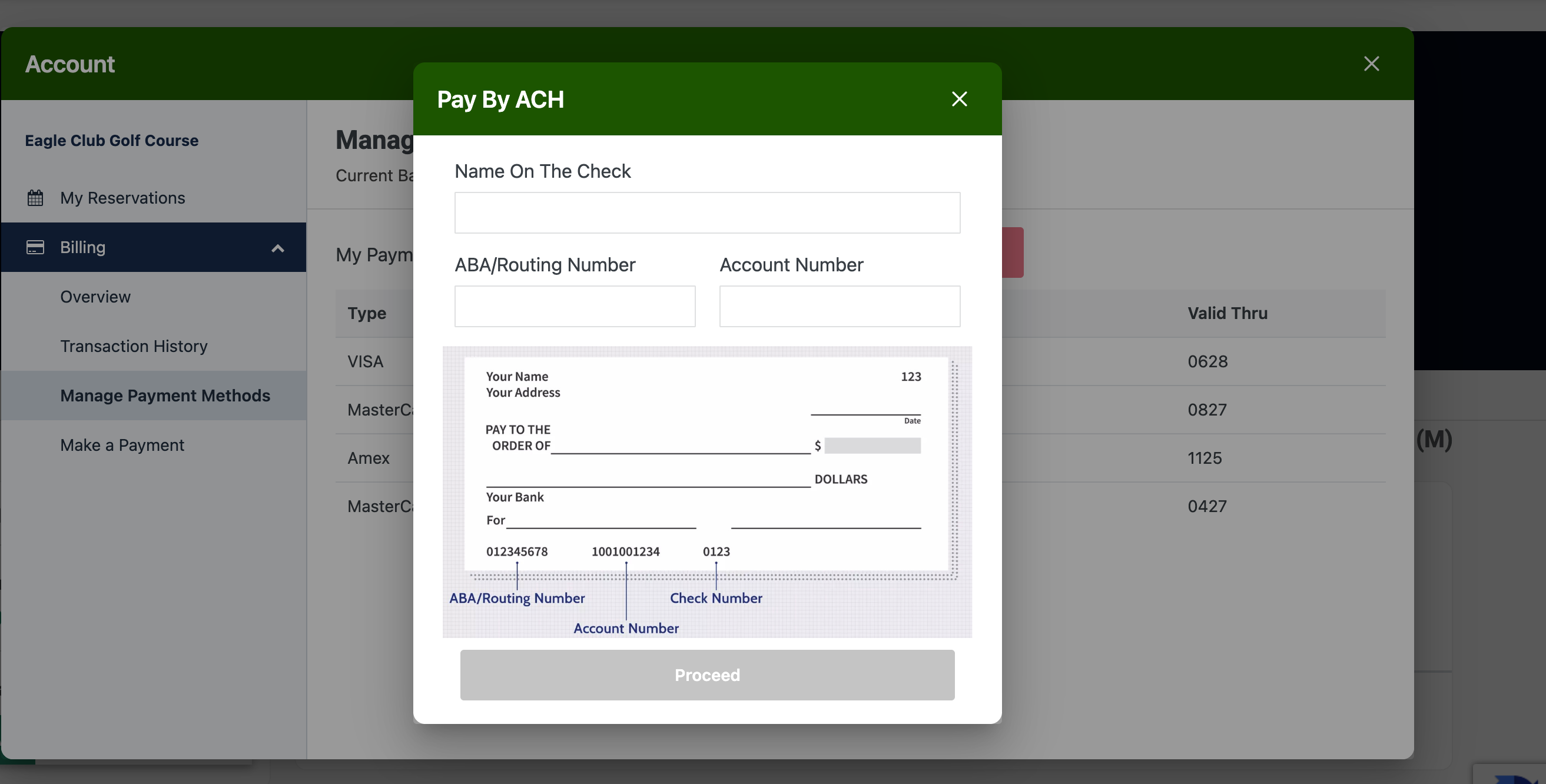
Step 4. Enter Your Banking Details
Complete the following fields:
- Name On The Check: Enter the name associated with the bank account.
- ABA/Routing Number: Enter your bank's 9-digit routing number.
- Account Number: Enter your checking account number.
The sample check displayed on the screen shows where to find the routing and account numbers on a paper check. Verify the information, then select Proceed to continue through the on-screen steps.
New ACH Details and Sample Check
Prefer to use a credit card? From Manage Payment Methods, select New Credit Card instead and follow the prompts to save your card.
Part 2: Make a Payment on Your Account
Step 5. Open Make a Payment
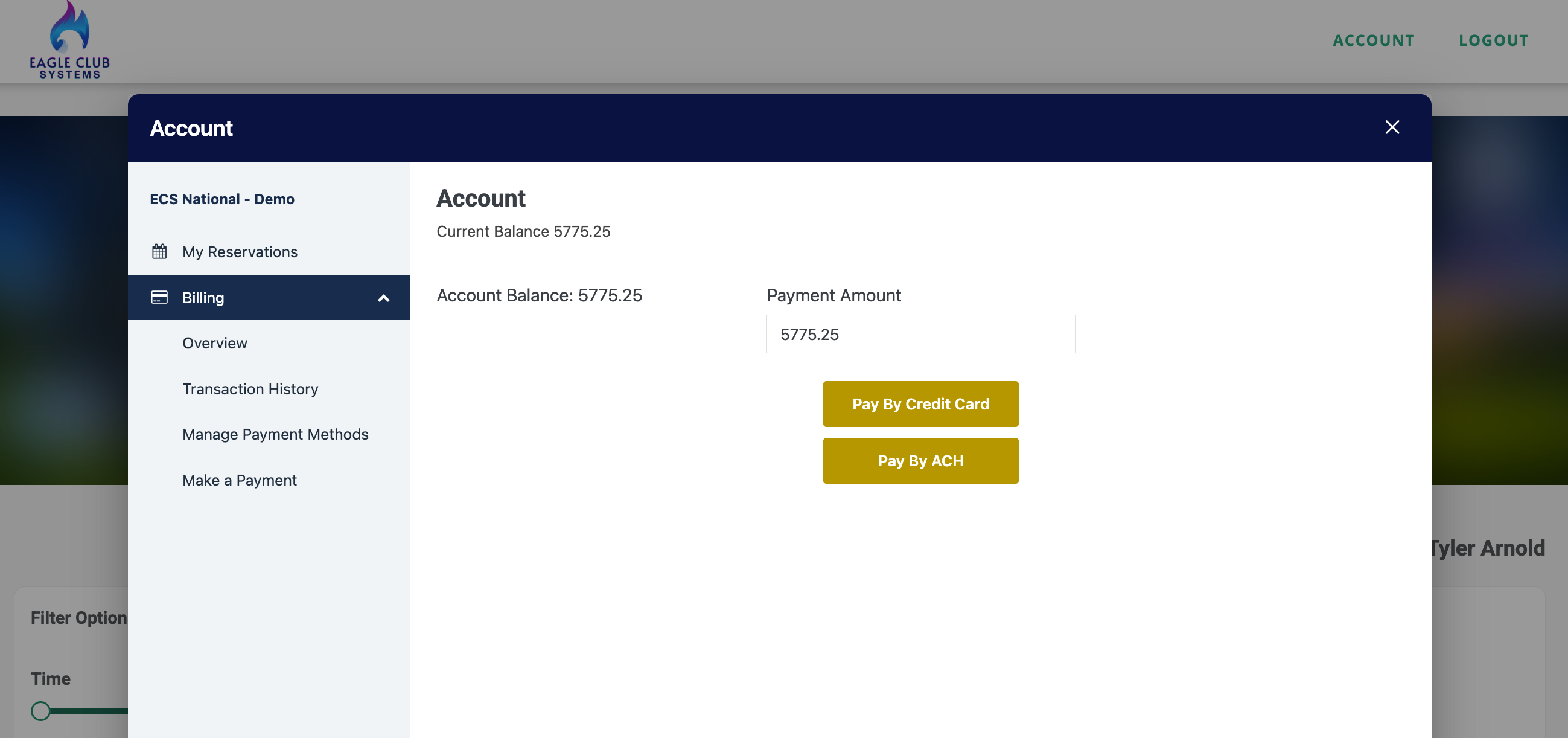
While signed in, go to Account → Billing → Make a Payment. Your current account balance will be displayed.
Step 6. Enter the Amount You Want to Pay
The Payment Amount field automatically fills in your full outstanding balance. You can change this amount to make a smaller payment or enter a larger amount if you want to pay ahead.
Step 7. Choose Your Payment Type
Select Pay By ACH to pay from your saved bank account, or Pay By Credit Card to use a saved card.
 Make a Payment Screen
Step 8. Select Your Saved Account and Proceed
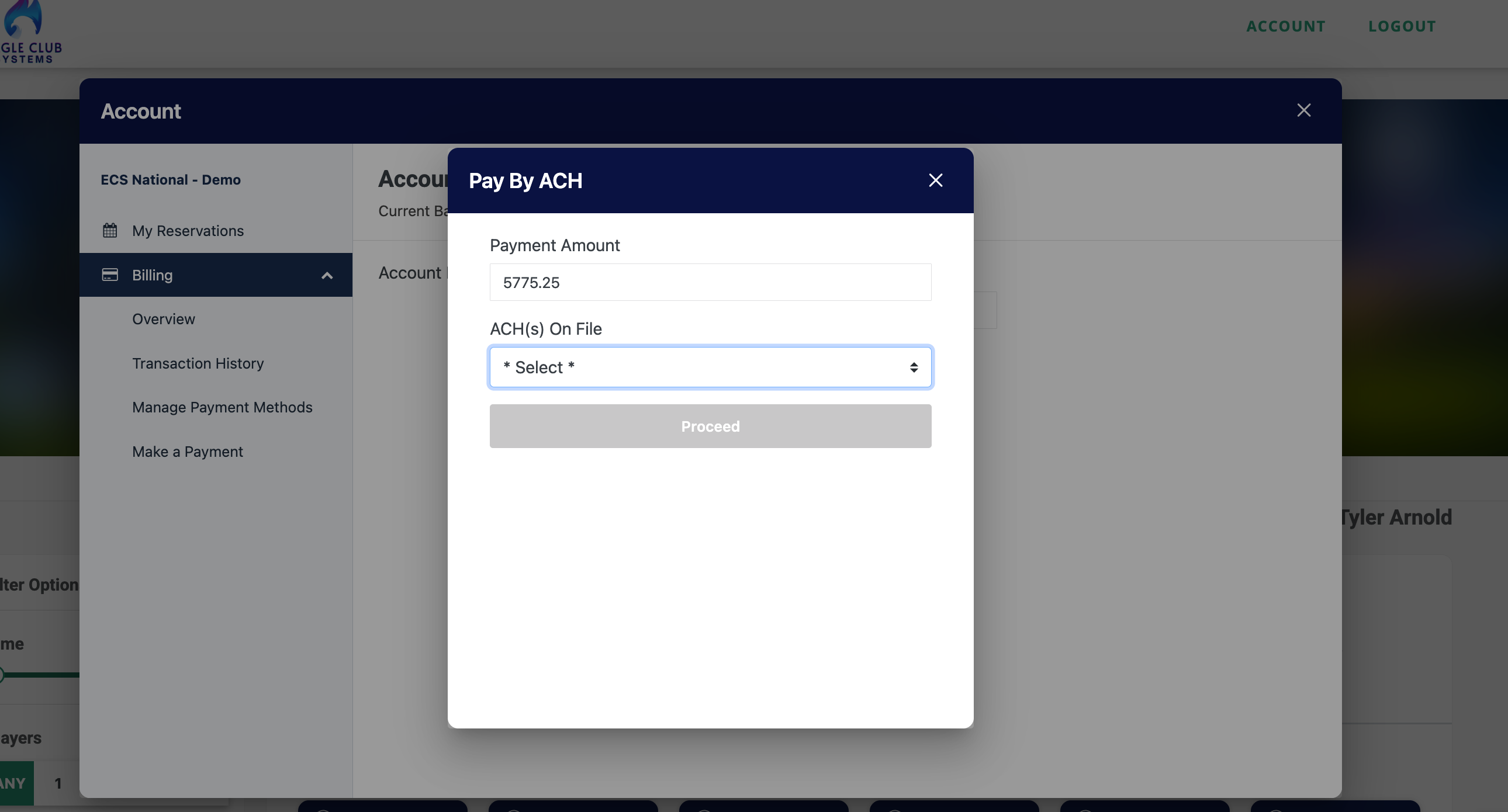
In the payment window, confirm the amount and use the ACH(s) On File dropdown to select the bank account you want to use. If paying by card, select the credit card you want to use. Then select Proceed and follow the on-screen instructions to complete your payment.
 Pay By ACH Window
Helpful Reminders
- You can save more than one payment method and choose which one to use when paying.
- You can make a partial payment, pay the full balance, or pay extra to create a credit balance.
- Double-check your routing and account numbers before proceeding.
- Never send your full bank account or credit card numbers by email to request help.
Need Assistance? Let us know if you have questions about your account balance or payment methods.
Eagle Club Systems • Simple. Reliable. Affordable.
Was this article helpful?
That’s Great!
Thank you for your feedback
Sorry! We couldn't be helpful
Thank you for your feedback
Feedback sent
We appreciate your effort and will try to fix the article